Clean all the leaves Controls (PC & Mobile)
Cleaning, inventory/shop, camera, and comfort tips for long yard sessions.
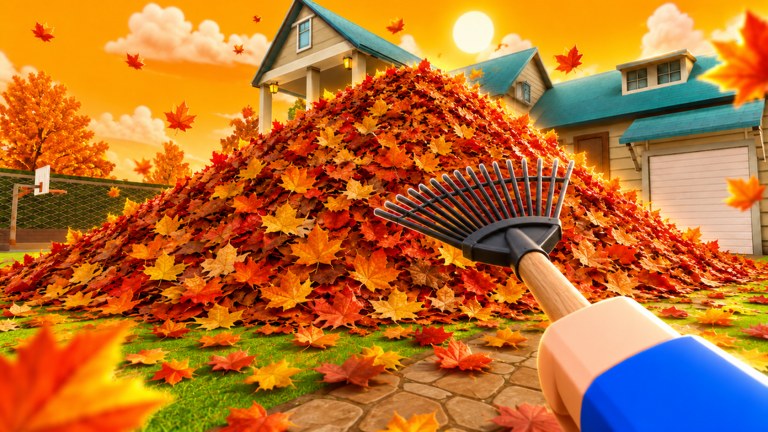
Comfortable controls turn Clean all the leaves! from a stubborn chore into a readable loop: collect leaves, sell for cash, upgrade bag and tools, unlock map sections, and push toward 100% for the secret ending. This guide covers typical Roblox PC and mobile patterns for cleaning, inventory/shop, and camera work, plus accessibility tips for longer sessions with up to 12 players online. Pair it with Getting Started once inputs feel natural.
Roblox experiences can remap prompts slightly after updates—if a button label differs in your build, use the in-game prompt text as truth and treat this page as orientation.
PC controls (keyboard & mouse)
Movement
- WASD — move through yard zones, toward sell points, garage access, and vents.
- Space — jump over low props and terrain seams that break clean lanes.
- Shift (if enabled in Roblox settings) — sprint when crossing long gaps between leaf fields and the shop.
Camera
- Mouse drag — orbit the camera to spot leftover leaves behind props.
- Scroll wheel — zoom out for wide yard awareness; zoom in for precise edge cleanup when chasing 100%.
- Hold right mouse (common Roblox pattern) if you need a temporary free-look while strafing a lane.
Cleaning & interaction
- Walk into leaf clusters and use the on-screen proximity prompt (often E or click) to collect according to your current tool/grab strength.
- Interact prompts also cover sell, upgrade shop, tool buy/equip, and garage buttons—watch for the highlight before spamming keys.
- After buying a tool, open inventory/equip flow and confirm the tool is active before judging clear speed.
UI
- Use the Roblox menu (Esc) for leave/respawn options if you soft-lock camera or fall out of bounds.
- Keep the shop UI closed while clearing so prompts for leaves stay readable.
Mobile controls (touch)
Movement
- Left thumb joystick for walking between piles, vents, and sell points.
- Jump button for short obstacles; avoid jump-spamming while collecting—it breaks your approach line.
Camera
- Drag with the right thumb to rotate. Periodically pull back to a wider view so you do not miss strips of leaves behind fences or garage structures.
- Pinch zoom (when available) helps swap between overview and detail during late 100% sweeps.
Cleaning & shop
- Tap proximity buttons when they appear for collect, sell, shop, equip, and garage interactions.
- On smaller phones, rotate to landscape if prompts overlap the joystick—accuracy beats portrait pride during dense cleans.
- After purchases, double-check that bag upgrades applied and the intended tool is equipped; mobile UI taps are easy to miss in a busy lobby.
Cleaning technique that respects the controls
Good inputs still need a pattern:
- Point the camera down the lane you intend to clear.
- Move in straight strips; turn 180 and offset by a tool-width for the return pass.
- When the bag nears full, break toward a known sell point before you are forced into an emergency walk.
- Re-open the camera wide after each sell to find missed patches.
Tool tier changes how forgiving the pattern is—blower-style coverage forgives messy paths; starter hands punish them. See Tools Tier List.
Inventory, shop, garage, vents
Treat these as control destinations, not lore:
- Upgrade shop — spend cash on bag/capacity, grab help, movement, and related upgrades (Upgrades Priority List).
- Tool buy/equip — purchase is not equip; verify active gear.
- Garage button — map/progression access node; practice approaching it without dropping camera into the floor.
- Vents — routing shortcuts or zone connectors; approach slowly on mobile so the prompt does not fight the joystick.
Learn their silhouettes via Map Overview so you are not hunting UI while the lobby moves on.
Co-op control hygiene
With crowded prompts, wait a half-beat before re-tapping sell or shop—duplicate inputs waste time and cause accidental menu opens. Call “selling” or “shop” in chat so teammates do not stack twelve bodies on one prompt. Hosts can paste the controls link for new joiners instead of typing essays mid-run.
Accessibility & comfort tips
- Lower camera sensitivity if you overshoot leaf edges on PC; raise it slightly on mobile if turning feels sticky.
- Enable shift-lock only if you prefer strafing lanes with consistent facing; turn it off if it fights how you approach sell points.
- Increase UI scale in Roblox settings when shop text is hard to read.
- Take short breaks during long 100% attempts—hand fatigue makes missed corners more likely than weak upgrades do.
- Color & contrast: if leaves blend into turf on your display, bump brightness/contrast or stand with the sun angle at your back so piles read clearly.
- One-hand mobile: possible for casual clears, poor for precision 100% sweeps—use two thumbs when finishing a zone.
- Hearing: audio cues help in some Roblox games; still verify visually before leaving a section marked done.
Common control mistakes
- Moving while the shop UI is open, then wondering why collect stopped.
- Buying a tool and never equipping it.
- Camera glued to first-person-ish zoom so entire leaf strips stay off-screen.
- Jumping through vents/garage approaches and missing prompts.
- Ignoring Roblox performance settings on low-end devices until input lag ruins timing.
Practice routine (five minutes)
- Clear one small strip with deliberate lane turns.
- Sell once on purpose before full to learn the path.
- Open shop, buy nothing (or a tiny upgrade), close UI cleanly.
- Find garage button and a vent entrance without opening chat guides.
- Equip-check your tool, then resume.
That micro-circuit builds muscle memory faster than raw grinding. When it feels automatic, continue with Getting Started, plan spends on Upgrade Planner, and scout geography on Map Overview.
Controls will not clear the map for you—but bad controls will make every upgrade feel weaker than it is. Stabilize inputs first, then optimize.
Frequently Asked Questions
Quick answers about Clean all the leaves and this wiki.
What key do I use to collect leaves on PC?
Use the on-screen proximity prompt—commonly E or click—when it appears over leaves, sell points, shop, garage, or vents. Follow the in-game label if your build differs.
Why did my new tool not feel stronger?
You may have bought it without equipping it. Confirm the tool is active, then retest clear speed on a fresh leaf strip.
Any mobile-specific tips?
Use landscape if prompts overlap the joystick, keep two thumbs for 100% sweeps, and periodically zoom the camera out to catch missed strips.
Where should I go after learning controls?
Follow [Getting Started](/guides/getting-started/), then use [Map Overview](/players/map/) and the [Upgrade Planner](/tools/upgrade-planner/) to structure your first full session.
Do patches change controls?
Prompts and UI can shift. If something feels wrong after an update, re-check this page against in-game labels and skim the [Updates Hub](/updates/).